
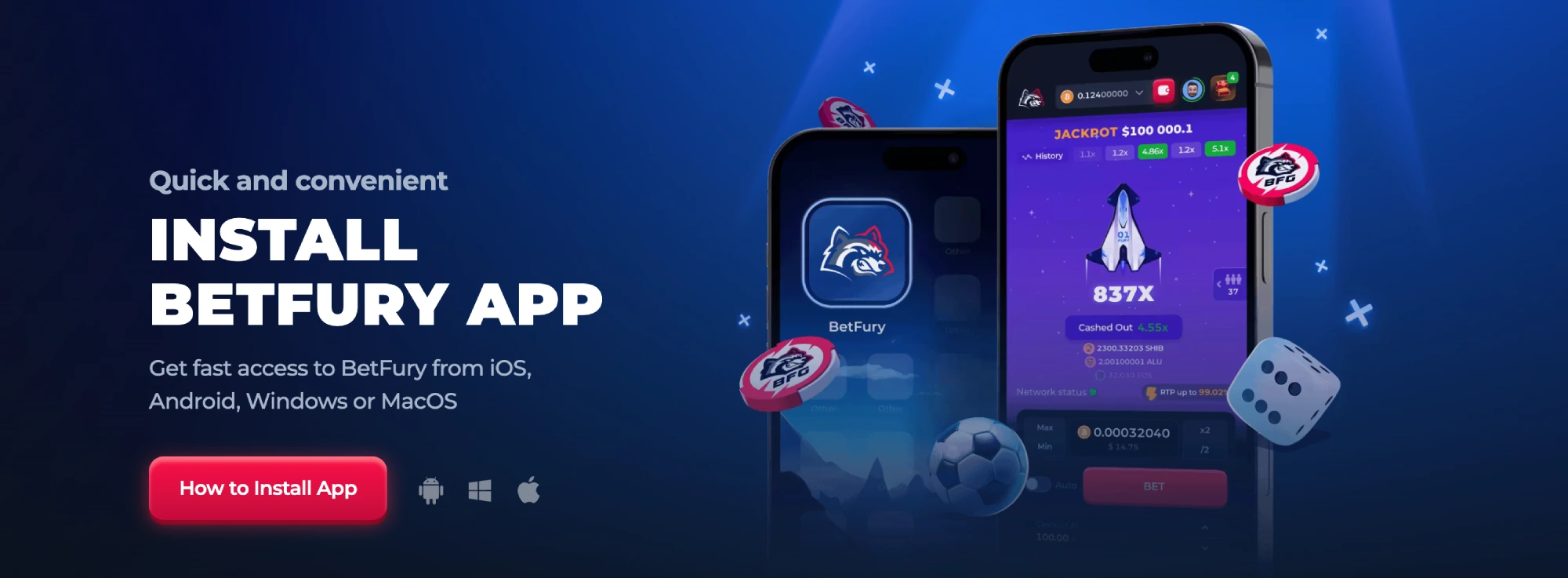


BetFury App: How to Install It on Mobile and Desktop
The BetFury app is best understood as a quick-access version of the BetFury website that you install from a supported browser. A new player should not think about it as a random file that must be downloaded from an unknown website. The safer idea is much simpler: you open the official BetFury site, use the browser install option, and the device creates an app-style shortcut that launches BetFury directly from your home screen, dock, desktop or app list.
The official BetFury install page presents the app as a fast and convenient way to access the platform from iOS, Android, Windows and MacOS. The exact steps are not identical on every device because Chrome, Safari and mobile browsers place their install buttons in different menus. This guide explains the logic slowly, so a beginner can understand what to tap, why the browser matters and how to avoid unsafe fake downloads.
What the BetFury App Is Useful For
The main benefit of the BetFury app is convenience. When you use the browser every time, you need to open the browser, type the address or find a bookmark, wait for the page and then log in. When you install the app-style shortcut, the device gives you a direct icon. That icon makes the experience feel closer to a normal app, even though the safest installation path still begins from the official BetFury website.
Why Quick Access Matters
Quick access matters because casino, sports and crypto features are easier to use when you do not repeat the same browser steps every session. The app shortcut can place BetFury next to the other apps you already use, so opening the platform becomes a one-click action.
How to Install BetFury on Android and iOS
On mobile, the BetFury app installation is usually handled by the browser menu. On Android, the common path is to open BetFury in Chrome, open the browser menu and use the install or add-to-home-screen option when it appears. After confirmation, the BetFury icon should appear on the home screen or inside the app list, depending on how the device handles installed web apps.
On iPhone or iPad, the process depends on the browser. Safari usually uses the share menu, where the player chooses the option that adds the site to the home screen. Chrome on iOS can show its own browser menu, but iOS still controls how web app shortcuts are added. If the install button is not visible, open the official BetFury install page in Safari and repeat the steps from there.
Open the official BetFury site
Start from the official BetFury domain or the official install page, because the browser can only create a safe shortcut from the page you are actually viewing.
Use the browser install menu
On Android, look for Install app or Add to Home screen in Chrome. On iOS, use the Safari share menu and choose the home-screen option.
Open the new icon
After installation, open the BetFury icon from the home screen and log in normally, just as you would in the browser.
How to Install BetFury on Windows and MacOS
On desktop, the BetFury app flow is usually connected to Chrome or Safari. In Chrome, an install icon can appear in the address bar, or the option can be found in the browser menu. After confirmation, BetFury can open in a separate app-like window instead of behaving like an ordinary tab. This is useful when you want the platform to sit next to other desktop apps instead of being buried among many browser tabs.
On MacOS, Safari can also create a dock-style web app in supported versions, while Chrome can create an app shortcut through its install controls. If the install prompt is not visible, update the browser, open the official install page again and check the browser menu before assuming the device is unsupported.
BetFUry Desktop Installation in Plain Language
The desktop app is not a separate casino that changes your account. It is a cleaner window for the same BetFury account, games, sports markets, wallet and bonuses. The login, balance and security checks still belong to your BetFury account.

What to Know If You Log In With a Crypto Wallet
Some players log in to crypto platforms through a wallet instead of only using an email and password. If you use a wallet connection, be extra careful with the app installation flow because the shortcut must still be able to reach the wallet environment that signs or confirms the connection. If the app shortcut does not open the wallet correctly, use the official BetFury page inside the wallet browser or follow the current BetFury instructions for wallet users.
Beginner note: an app shortcut should never ask you to reveal a seed phrase or private key. If any page, pop-up or download asks for secret wallet recovery words, stop immediately and return to the official wallet and BetFury instructions.
Checklist Before Installing the BetFury App
Use this checklist before you install anything. It is intentionally simple because beginners usually get into trouble when they rush, click the first download button they see and forget to check whether the page is official.
- Start from the official BetFury website or the official BetFury install page, not from a file shared in a chat or forum.
- Check whether you are using a supported browser, because Chrome and Safari handle install buttons differently.
- On mobile, look for Add to Home Screen or Install App inside the browser menu, not inside a random advertising pop-up.
- On desktop, check the browser address bar and menu for the app install option before downloading anything manually.
- After installation, log in normally and confirm that the balance, bonuses and account settings match the official BetFury account.
- If you use a crypto wallet, never enter a seed phrase into a page that appears after installing an app shortcut.
Source for the installation flow: BetFury Install App page